![TKA_Purple.png]](https://support.theknowledgeacademy.com/hs-fs/hubfs/TKA_Purple.png?height=50&name=TKA_Purple.png)
🔐 Step 1: Go to the MyTKA Login Page
Visit the MyTKA portal login page at https://mytka.theknowledgeacademy.com.
Click on the “Login” button in the top-right corner.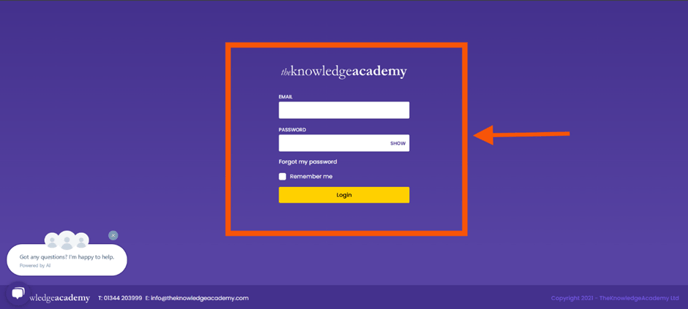
🔁 Step 2: Click “Forgot your password?”
On the login screen, click the “Forgot your password?” link just below the login fields.
This will take you to the password recovery page.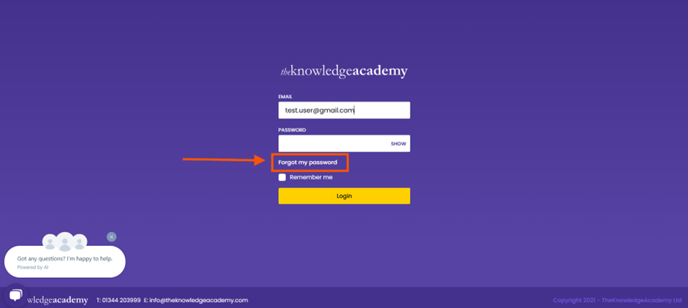
✍️ Step 3: Enter Your Registered Email
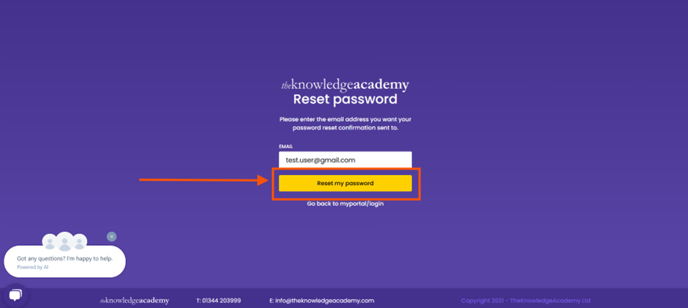
In the password reset field, enter the email address linked to your MyTKA account, then click the “Reset Password” button.
📬 Step 4: Check Your Email Inbox
You will now see a notification prompting you to check your inbox.
Look for an email from:
📧 mp-noreply@theknowledgeacademy.com
If the email does not arrive, please check your spam or junk folder.
🔗 Step 5: Open the Email and Click the Reset Link
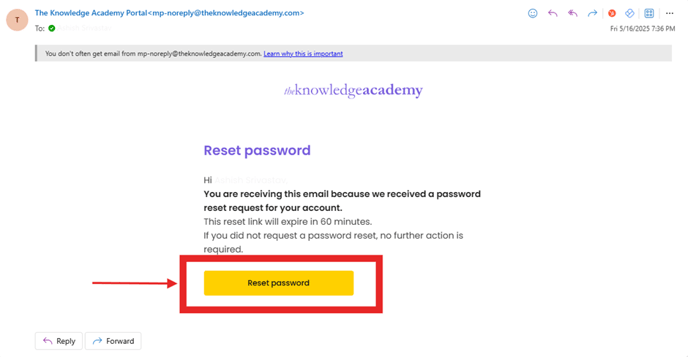
Open the password reset email and click the secure reset link provided.
This will take you to a page where you can set a new password.
✅ Step 6: Create Your New Password
Enter your new password, confirm it, and click on “Reset Password.”
You’ll now be able to log into your MyTKA account with your new credentials.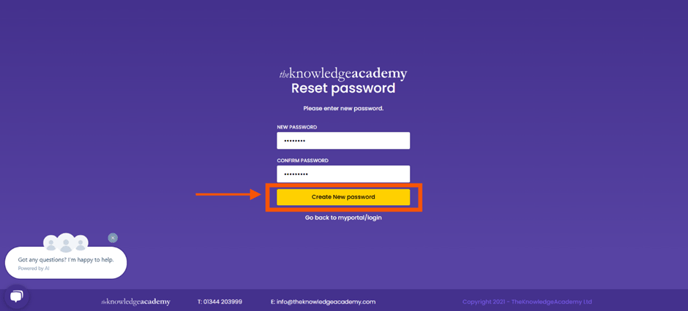
❓ Still Need Help?
If you’re experiencing issues or didn’t receive the reset email, please raise a support ticket at:
🔗 https://support.theknowledgeacademy.com